OpenClaw Slack Integration: Setup Guide and Fixes
2026-11-02

To connect OpenClaw to Slack, you install the Slack plugin, create a Slack app in your workspace, give it the right scopes, and paste two tokens into your OpenClaw configuration. Socket Mode is the default transport and the simplest path. This guide walks through the choice of transport, the credentials, the scopes, the test commands, and the failures people hit most often. It also shows how a managed server removes the hosting part of the work.
TL;DR
- Use Socket Mode unless your deployment sits behind a load balancer or needs a public HTTPS endpoint. It is the default in the OpenClaw Slack setup docs.
- Socket Mode needs a Bot User OAuth Token and an App-Level Token with
connections:write. HTTP Request URLs need the bot token, the Signing Secret and a public HTTPS URL. - Verify with
openclaw channels status --probe,openclaw logs --followandopenclaw doctor. - Most failed setups come down to mismatched tokens from two different Slack apps, or missing scopes.
- If you do not want to run the server yourself, a managed OpenClaw host handles the always-on part for you.
Table of Contents
- What OpenClaw does inside Slack
- Choose a transport: Socket Mode or HTTP Request URLs
- What you need before you start
- Step-by-step: connect OpenClaw to Slack in Socket Mode
- The HTTP Request URL variant
- Test that it works
- Fixing common problems
- Security checks before you invite the whole company
- Running it without a server of your own
- Get a Slack-ready OpenClaw agent on ClawBase
- FAQ
- Sources
What OpenClaw does inside Slack
OpenClaw is an open-source personal AI assistant. Once the Slack channel is connected, the Slack app supports the /openclaw slash command, app mentions, file handling and reactions, according to the Slack setup page in the OpenClaw docs. In practice that means a teammate can mention the bot in a channel, message it directly, or call the slash command, and the agent replies in the same thread of conversation.
The plugin also listens for workspace activity. Member join and leave events and channel activity are mapped into system events, which gives the agent awareness of what is happening around it rather than only what it is asked directly.
A few things teams commonly hand to an agent in Slack:
- Answering recurring questions in a support or ops channel.
- Summarizing a long thread when someone returns from time off.
- Receiving a file, such as a log or a spreadsheet, and working on it.
- Acting on a reaction as a lightweight approval or trigger.
For broader ideas beyond Slack, see the OpenClaw use cases page.
Choose a transport: Socket Mode or HTTP Request URLs
Slack can deliver events to your app in two ways, and OpenClaw supports both.
| Socket Mode | HTTP Request URLs | |
|---|---|---|
| Default in OpenClaw | Yes | No |
| Public HTTPS endpoint | Not required | Required |
| Credentials | Bot User OAuth Token and App-Level Token (`connections:write`) | Bot token, Signing Secret, public HTTPS gateway URL |
| Failure recovery | Connection restarts automatically with bounded backoff | Relies on Slack's own retries of each request |
| Best fit | Single server, laptop, home lab, managed host | Deployments behind load balancers |
The recovery behavior comes from the OpenClaw transport documentation. That same page makes a point worth repeating: the two modes reach functional parity, so you should choose by deployment architecture, not by features.
Our rule of thumb is simple. If the agent runs on one dedicated machine, pick Socket Mode. It needs no inbound port, no certificate and no reverse proxy, so there is less to break. Pick HTTP Request URLs only when your infrastructure already terminates HTTPS in front of several instances and you have a reason to route Slack traffic through it.
What you need before you start
Gather these four things first, and the rest takes minutes instead of an afternoon:
- A running OpenClaw instance with the Slack plugin installed. If you have not set OpenClaw up yet, the OpenClaw setup quickstart covers it.
- Access to the target Slack workspace, with enough rights to create and install an app. If your workspace restricts app installs, ask an admin to approve it or to do the install.
- A Slack app created in the Slack API dashboard.
- The credentials for your transport, listed in the table above.
The Slack setup page is the canonical list of prerequisites, and it is worth skimming before you click anything in Slack.
Step-by-step: connect OpenClaw to Slack in Socket Mode
1. Create the Slack app
Open the Slack API dashboard, create a new app for your workspace, and give it a name your teammates will recognize in the member list. The name matters more than you would think: people mention the bot by name, and a clear one cuts down on confusion in busy channels.
2. Add the bot token scopes
The bot needs scopes that match what you want it to do. The OpenClaw docs name chat:write and app_mentions:read as required, plus history and read scopes such as im:history and channels:history, depending on the features you want. Think in terms of surfaces:
- Replies in channels:
chat:writeandapp_mentions:read, pluschannels:historyif the agent should read channel context. - Direct messages:
im:historyin addition to the basics. - Private channels and group DMs: the matching history scopes for those conversation types.
If your workspace policy limits which scopes an app may request, use the Minimal manifest described on the setup page. It is the smaller starting point, and you can add scopes later when a feature requires them.
3. Enable Socket Mode and create the App-Level Token
Turn on Socket Mode in the app settings, then generate an App-Level Token with the connections:write scope. This is the token people forget, and it is the one that makes Socket Mode work at all.
4. Install the app to the workspace
Install the app. Slack then shows the Bot User OAuth Token. You now have the two credentials Socket Mode needs. The setup page also notes that you can choose a workspace-scoped or an Enterprise Grid installation, so pick the one that matches how your organization is structured.
5. Put the tokens into OpenClaw
Copy the Bot User OAuth Token and the App-Level Token into your OpenClaw configuration. The documented options are environment variables or a YAML config file, and for sensitive values the docs point to SecretRef. Whichever you choose, keep tokens out of shared repositories and chat messages. Treat them like passwords, because anyone holding a bot token can act as your bot.
6. Restart and invite the bot
Restart the OpenClaw gateway so the channel loads, then invite the bot to a test channel and mention it. A reply means the loop works. If not, go straight to the checks below.
The HTTP Request URL variant
If you chose HTTP Request URLs, the steps differ in three places. You do not enable Socket Mode or create an App-Level Token. Instead you copy the app's Signing Secret alongside the bot token, and you point Slack's request URL at a public HTTPS address that reaches your OpenClaw gateway, as described in the transport docs.
The signing secret lets OpenClaw confirm that incoming requests really came from Slack. Slack retries failed requests on its own schedule, so a brief outage on your side does not necessarily lose events, but a certificate or routing mistake will block everything. Test the URL from outside your network before blaming the app.

Test that it works
Three commands from the OpenClaw Slack troubleshooting page cover most verification:
openclaw channels status --probe
openclaw logs --follow
openclaw doctor
Use them in this order:
openclaw channels status --probechecks whether the Slack channel is actually connected, not just configured.openclaw logs --followstreams live logs. Send a mention in Slack and watch the event arrive. If nothing appears, the problem is upstream of OpenClaw: scopes, event subscriptions or the transport.openclaw doctorruns a broader health check and flags configuration problems you did not think to look for.
A healthy sequence looks like this: the probe reports the channel connected, the log shows an incoming event when you mention the bot, and a reply lands in Slack within a few seconds.
Fixing common problems
The connection never starts
The first thing to check is the token pair. The troubleshooting guidance treats a bot-token and app-token mismatch as its own failure: both tokens must belong to the same Slack app. It is easy to create a second app while experimenting and paste one token from each. Also confirm that Socket Mode is enabled in the app settings, since a valid App-Level Token does nothing without it.
The bot is connected but silent
Look at scopes and channel membership. A bot that is not invited to a channel will not see mentions there. A bot without the history scope for that conversation type will connect fine and still miss context. After changing scopes, reinstall the app so Slack issues updated permissions.
Replies are slow or occasionally lost
Two behaviors from the events and operations documentation explain most of this. Dedicated Web API reads have a 30-second deadline per request attempt, and a write may commit on Slack's side before a late response reaches OpenClaw. If you see an occasional duplicate or a message that appears despite an error in the log, that is the likely reason. Check the log timing before changing configuration.
The connection drops and returns
In Socket Mode that is by design. The connection restarts automatically with a bounded backoff, so short network blips heal themselves. Repeated drops with no recovery point to network egress rules or a stopped process, which is where an always-on host helps.
For errors outside Slack, the command ladder for OpenClaw setup errors and the 10-minute troubleshooting checklist are good next steps.
Security checks before you invite the whole company
A Slack bot can read what you allow it to read, so settle permissions before rollout:
- Grant the narrowest scopes that support your use case. Start from the Minimal manifest and add as needed.
- Store credentials properly. Use SecretRef or environment variables instead of plain text in a file others can read.
- Pick the right install scope. Choose a workspace-scoped or Enterprise Grid installation deliberately, and tell your Slack admin which one you picked.
- Start in one private channel. Let a small group try the agent before you widen access.
- Rotate tokens if one is ever pasted somewhere it should not be.
The broader question of running agents safely across several tools is covered in our guide to secure OpenClaw integrations for teams.
Running it without a server of your own
Socket Mode removes the need for a public endpoint, but the agent still has to run somewhere, around the clock, with updates applied and a backup in case something breaks. That is the part many teams would rather not own. Our guide to managed versus self-hosted OpenClaw lays out the trade-offs for teams without dedicated DevOps.
> ## Our perspective
>
> We build ClawBase around one observation: the hard part of an AI assistant in Slack is rarely the Slack app. Creating the app, setting scopes and pasting two tokens is a half-hour job. The hard part is the machine behind it. An agent that answers your team at 2 a.m. needs an always-on server, patched software, encrypted storage, backups and a memory that survives restarts.
>
> We think of that memory as layers, like a stack. Short-term context lives in the conversation, while longer-term facts persist on the server, so the agent in your support channel remembers last week's decisions. That only works when the host stays up and keeps its state, which is why we run each OpenClaw instance on its own dedicated, encrypted server rather than on shared infrastructure.
>
> We also believe teams should not need sysadmin skills to benefit from open-source AI. OpenClaw is capable software, and it deserves a hosting experience where one click gets you a private agent that connects to Slack, Telegram, Discord and WhatsApp, with more than 50 models to choose from. Our goal is to leave you with the interesting work: deciding what the agent should do for your team.
>
> *Iosif Peterfi*
Get a Slack-ready OpenClaw agent on ClawBase
ClawBase deploys OpenClaw on a dedicated, encrypted cloud server with one click, so you skip server setup and go directly to connecting Slack. The service is built for 99.9% uptime, with persistent memory, daily encrypted backups, automated updates and support for over 50 AI models, including multi-model routing. The entry plan comes with a 7-day free trial.
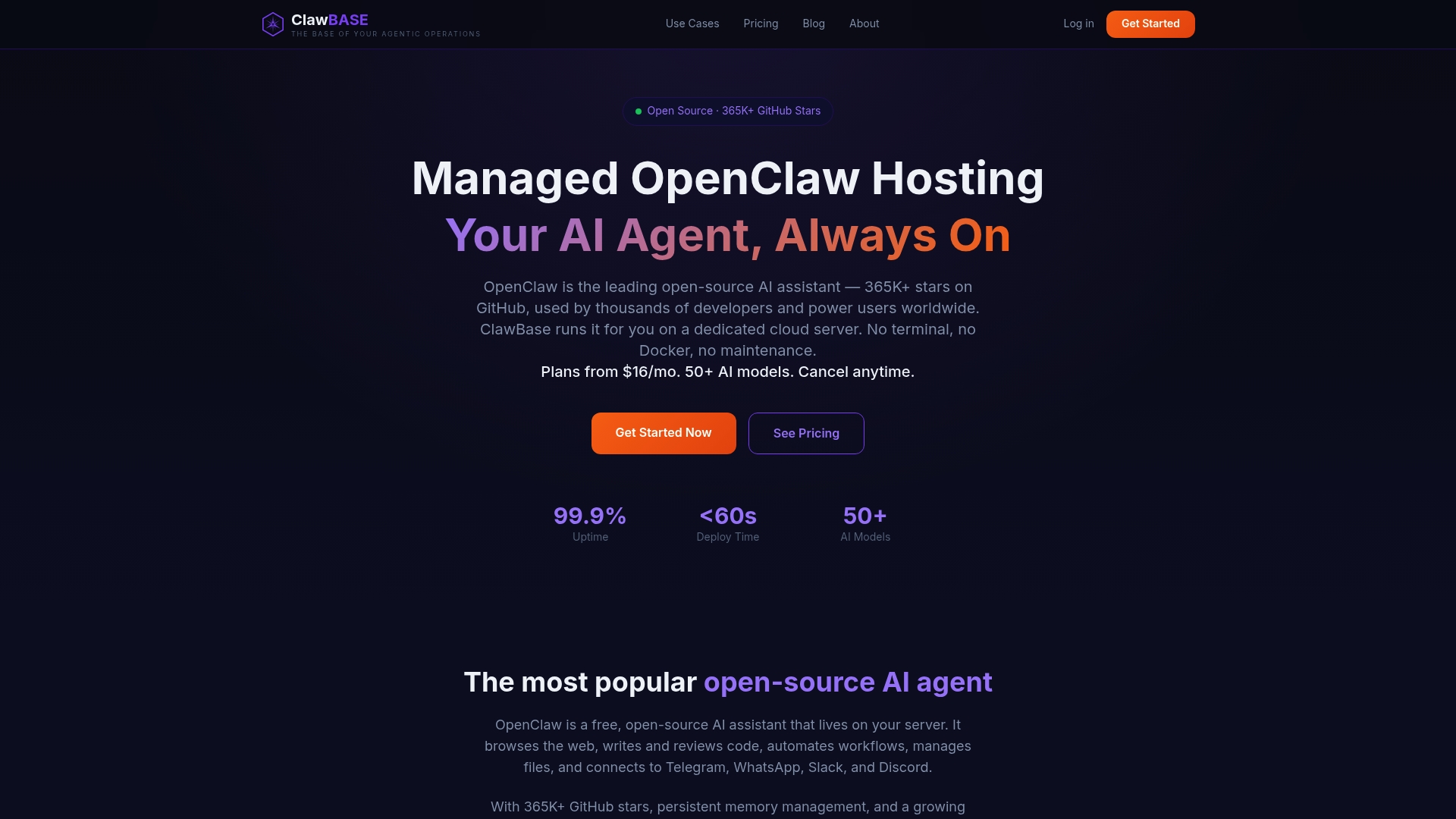
Plans on the ClawBase pricing page run as follows:
| Plan | Monthly | Yearly |
|---|---|---|
| LITE | $16 per month | $199 per year |
| PRO | $33 per month | $399 per year |
| MAX | $66 per month | $799 per year |
Payment is by credit card or cryptocurrency. If you want to see the platform first, the ClawBase tutorial walks through setting up and mastering your agent, and the ClawBase homepage has the full overview. Teams that also live in chat apps beyond Slack can follow the Discord integration guide or the WhatsApp integration guide to reach the same agent from other places.
FAQ
Which should I use: Socket Mode or HTTP Request URLs?
Use Socket Mode in most cases. It is the default, needs no public HTTPS endpoint, and reconnects automatically with bounded backoff. Choose HTTP Request URLs when your deployment sits behind a load balancer and you already expose a public HTTPS gateway. The OpenClaw docs say the two reach functional parity, so deployment architecture should decide.
Which tokens do I need to connect OpenClaw to Slack?
For Socket Mode you need a Bot User OAuth Token and an App-Level Token with the connections:write scope. For HTTP Request URLs you need the bot token, the app's Signing Secret and a public HTTPS gateway URL. Both tokens must come from the same Slack app, or the connection will not start.
How do I know the Slack connection is working?
Run openclaw channels status --probe to confirm the channel is connected, then openclaw logs --follow while you mention the bot in Slack. Use openclaw doctor for a wider health check. If the event shows in the logs but no reply arrives, review your scopes and model configuration.
Can I connect OpenClaw to Slack if my workspace limits app permissions?
Yes, in many cases. The OpenClaw setup docs provide a Minimal manifest meant for workspaces whose policy restricts scopes. Start with it, ask your Slack admin to approve the install, and add scopes only when a feature needs them.
Do I need my own server to run OpenClaw in Slack?
You need somewhere for the agent to run continuously. You can host it yourself, or use a managed host such as ClawBase, which deploys OpenClaw on a dedicated server in one click and keeps it updated and backed up.
Sources
- OpenClaw docs: Slack setup
- OpenClaw docs: Slack transports
- OpenClaw docs: Slack events and operations
- OpenClaw docs: Slack troubleshooting